A USB-C connector does not tell you everything a cable can do. Charging, data transfer, and video support are separate things to check. A charging indicator confirms a power connection; it does not establish that the same connection can carry a picture.
You plug a laptop into a monitor. The battery starts charging, but the display stays dark. Before replacing the monitor or adding another adapter to your cart, write down the connection you are trying to make. One simple inventory can turn a vague problem into a set of specific questions.
1. Look past the connector shape
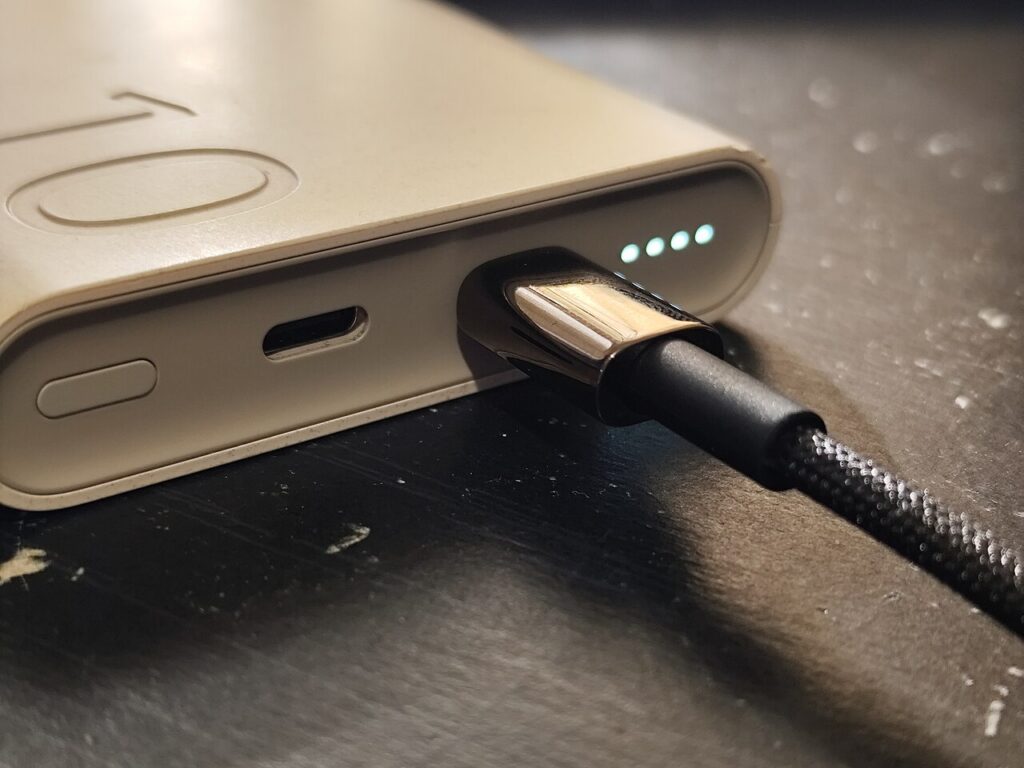

Apple’s comparison of its USB-C Charge Cable and Thunderbolt 3 cable gives a concrete example: the charge cable described there supports USB 2 data transfer but does not support video. The Thunderbolt cable has different capabilities. That comparison does not describe every cable on the market, but it shows why identical-looking plugs are not enough to establish compatibility.
Start with the exact model name printed on the cable packaging, order history, or manufacturer’s page. Look for an explicit description of video support and the conditions attached to it. A large charging-wattage number is not a substitute for that information.
2. Turn the connection into a one-line map
Write the devices in the order the signal needs to travel. For example: laptop’s left USB-C port → hub → HDMI cable → monitor’s HDMI input. This is a hypothetical setup, not a recommended combination. The point is to make every component visible, including the adapter you may have forgotten was involved.
| Part of the connection | Question to answer | What to record |
|---|---|---|
| Source device | Does this exact model and port support an external display? | Device model, port, and manual link |
| Cable or hub | Does the manufacturer specify video support for this connection? | Exact product name and supported configuration |
| Monitor | Which input is connected, and which input is selected? | Model and the actual input in use |
If you cannot find an answer, write “not confirmed” instead of filling the gap with a guess. That missing answer is the next thing to investigate. It is more useful than buying a vaguely “better” cable.
3. Match the documentation to the exact device
Apple’s iPhone connection guide distinguishes external-display support by model. “It has USB-C” is therefore not a complete compatibility check for an iPhone either. Find your model in the official support list, then read the cable requirements for the display connection you want to use.
For a laptop, use its manufacturer’s documentation to identify the relevant port. If there are several adapters in the path, compare your setup with a supported configuration in the manuals. Change one part at a time when investigating a supported setup, so the result tells you which change mattered.
4. Use the inventory to decide what to do next
Here are two hypothetical entries. The model labels are fictional; the documentation findings are assumptions supplied for the example, not claims about real products.
Setup A: Laptop A, port 1 → cable C → monitor M, input 2
Source port: display output confirmed in its manual
Monitor input: the intended connection is supported and selected
Cable C: its own specification explicitly says no video
Next step: find a cable documented for this exact display connection

Setup B: Laptop B, port 2 → the same cable C → monitor M
Source port: display output not confirmed
Next step: check the laptop manual before choosing any replacement
Both setups contain a cable documented as having no video support. In A, the remaining requirements give you a concrete replacement specification to check. In B, replacing the cable alone does not resolve the unknown port capability. Keep that question open instead of treating a purchase as the diagnosis.
Once the connection requirements are confirmed, a shopping query becomes more precise. You are looking for a documented connection, not simply a cable described as premium, fast, or powerful.
If a cable you already own meets the documented requirements, your next step may be checking the selected monitor input or the manufacturer’s troubleshooting instructions. The useful result of this exercise is a narrower question, even when the answer is that you do not need to buy anything.
Sources and scope
The device-specific claims above come from the linked Apple documentation. The connection inventory is an editorial troubleshooting aid, not a claim that every display problem has the same cause.